Learn to Code : Membuat Simulasi Penyelesaian Sistem Persamaan Linear Dua Variabel (Powerpoint)

Bagaimana caranya membuat simulasi penyelesaian sistem persamaan linear dua variabel pada powerpoint? Simak dan ikuti tutorial pada video ini.

download : video tutorial membuat simulasi SPLDV

Script VBA untuk Simulasi Penyelesaian Sistem Persamaan Linear Dua Variabel
‘script  untuk tombol hapus
Sub hapus()
Slide1.TextBox1.Text = “-”
Slide1.TextBox2.Text = “-”
Slide1.TextBox3.Text = “-”
Slide1.TextBox4.Text = “-”
Slide1.TextBox5.Text = “-”
Slide1.TextBox6.Text = “-”
ActivePresentation.Slides(1).Shapes(“nilaiX”).TextFrame.TextRange.Text = “…”
ActivePresentation.Slides(1).Shapes(“nilaiY”).TextFrame.TextRange.Text = “…”
End Sub

‘script untuk tombol hitung

Sub hitungX_Y()
Dim a, b, p, c, d, q As Integer
a = Val(Slide1.TextBox1.Text)
b = Val(Slide1.TextBox2.Text)
p = Val(Slide1.TextBox3.Text)
c = Val(Slide1.TextBox4.Text)
d = Val(Slide1.TextBox5.Text)
q = Val(Slide1.TextBox6.Text)

If a * d – b * c <> 0 Then
ActivePresentation.Slides(1).Shapes(“nilaiX”).TextFrame.TextRange.Text = (d * p – b * q) / (a * d – b * c)
ActivePresentation.Slides(1).Shapes(“nilaiY”).TextFrame.TextRange.Text = (a * q – c * p) / (a * d – b * c)
Else
MsgBox (“Solusi SPLDV tidak tunggal”)
End If
End Sub


download : file latihan membuat simulasi SPLDV

Learn to Code : Membuat simulasi warna RGB (Red – Green – Blue) pada powerpoint

Pada posting kali ini, akan dijelaskan bagaimana membuat simulasi warna RGB (Red – Green – Blue) pada powerpoint menggunakan visual basic for application.

download : video tutorial membuat simulasi warna RGB

Script VBA untuk membuat simulasi warna RGB

Private Sub SpinButton1_Change()
ActivePresentation.Slides(1).Shapes(“kotakRGB”).Fill.BackColor.RGB = RGB(Val(SpinButton1), Val(SpinButton2), Val(SpinButton3))
ActivePresentation.Slides(1).Shapes(“kotakRGB”).Fill.ForeColor.RGB = RGB(Val(SpinButton1), Val(SpinButton2), Val(SpinButton3))
ActivePresentation.Slides(1).Shapes(“kotakRed”).Fill.BackColor.RGB = RGB(Val(SpinButton1), 0, 0)
ActivePresentation.Slides(1).Shapes(“kotakRed”).Fill.ForeColor.RGB = RGB(Val(SpinButton1), 0, 0)
ActivePresentation.Slides(1).Shapes(“angkaRed”).TextFrame.TextRange.Text = Val(SpinButton1)
End Sub

Private Sub SpinButton2_Change()
ActivePresentation.Slides(1).Shapes(“kotakRGB”).Fill.BackColor.RGB = RGB(Val(SpinButton1), Val(SpinButton2), Val(SpinButton3))
ActivePresentation.Slides(1).Shapes(“kotakRGB”).Fill.ForeColor.RGB = RGB(Val(SpinButton1), Val(SpinButton2), Val(SpinButton3))
ActivePresentation.Slides(1).Shapes(“kotakGreen”).Fill.BackColor.RGB = RGB(0, Val(SpinButton2), 0)
ActivePresentation.Slides(1).Shapes(“kotakGreen”).Fill.ForeColor.RGB = RGB(0, Val(SpinButton2), 0)
ActivePresentation.Slides(1).Shapes(“angkaGreen”).TextFrame.TextRange.Text = Val(SpinButton2)
End Sub

Private Sub SpinButton3_Change()
ActivePresentation.Slides(1).Shapes(“kotakRGB”).Fill.BackColor.RGB = RGB(Val(SpinButton1), Val(SpinButton2), Val(SpinButton3))
ActivePresentation.Slides(1).Shapes(“kotakRGB”).Fill.ForeColor.RGB = RGB(Val(SpinButton1), Val(SpinButton2), Val(SpinButton3))
ActivePresentation.Slides(1).Shapes(“kotakBlue”).Fill.BackColor.RGB = RGB(0, 0, Val(SpinButton3))
ActivePresentation.Slides(1).Shapes(“kotakBlue”).Fill.ForeColor.RGB = RGB(0, 0, Val(SpinButton3))
ActivePresentation.Slides(1).Shapes(“angkaBlue”).TextFrame.TextRange.Text = Val(SpinButton3)
End Sub

download : file latihan membuat simulasi warna RGB


Learn to Code : Membuat Quiz Pilihan Ganda (sederhana)

Pada seri posting learn to code, akan ditampilkan video-video tutorial vba untuk powerpoint dan script vba nya. Semoga bermanfaat!

download : video tutorial membuat quiz pilihan ganda

Scriot VBA untuk mebuat quiz pilihan ganda (sederhana)

‘deklarasi variabel nilai

Public nilai As Integer

‘script untuk tombol mulai

Sub mulai_btn()
ActivePresentation.Slides(7).Shapes(“nilaiTest”).TextFrame.TextRange.Text = “0”
ActivePresentation.SlideShowWindow.View.Next
End Sub

‘script untuk jawaban benar

Sub jawaban_benar()
nilai = Val(ActivePresentation.Slides(7).Shapes(“nilaiTest”).TextFrame.TextRange.Text)
nilai = nilai + 20
ActivePresentation.Slides(7).Shapes(“nilaiTest”).TextFrame.TextRange.Text = nilai
ActivePresentation.SlideShowWindow.View.Next
End Sub

‘script untuk jawaban salah

Sub jawaban_salah()
nilai = Val(ActivePresentation.Slides(7).Shapes(“nilaiTest”).TextFrame.TextRange.Text)
nilai = nilai + 0
ActivePresentation.Slides(7).Shapes(“nilaiTest”).TextFrame.TextRange.Text = nilai
ActivePresentation.SlideShowWindow.View.Next
End Sub

download : file ppt quiz pilihan ganda


5000 PPT Interaktif : Pengurangan 10 (SD Kelas 1)

Misi dari proyek ini adalah membuat dan menyediakan 5000 bahan ajar interaktif berbasis powerpoint untuk guru dan siswa SD – SMP – SMA di Indonesia, yang dapat di download gratis (rencana akan ada website khusus).

Petunjuk Penggunaan file powerpoint macro enabled show (ppsm), jika di klik file powerpoint yang menggunakan VBA (ppsm), maka akan muncul dialog box seperti pada gambar di bawah. Pilih “enable content for this session” kemudian klik “OK

petunjukcover powerpoint interaktif pengurangan 10

coverIloveMath_pengurangan10screenshot

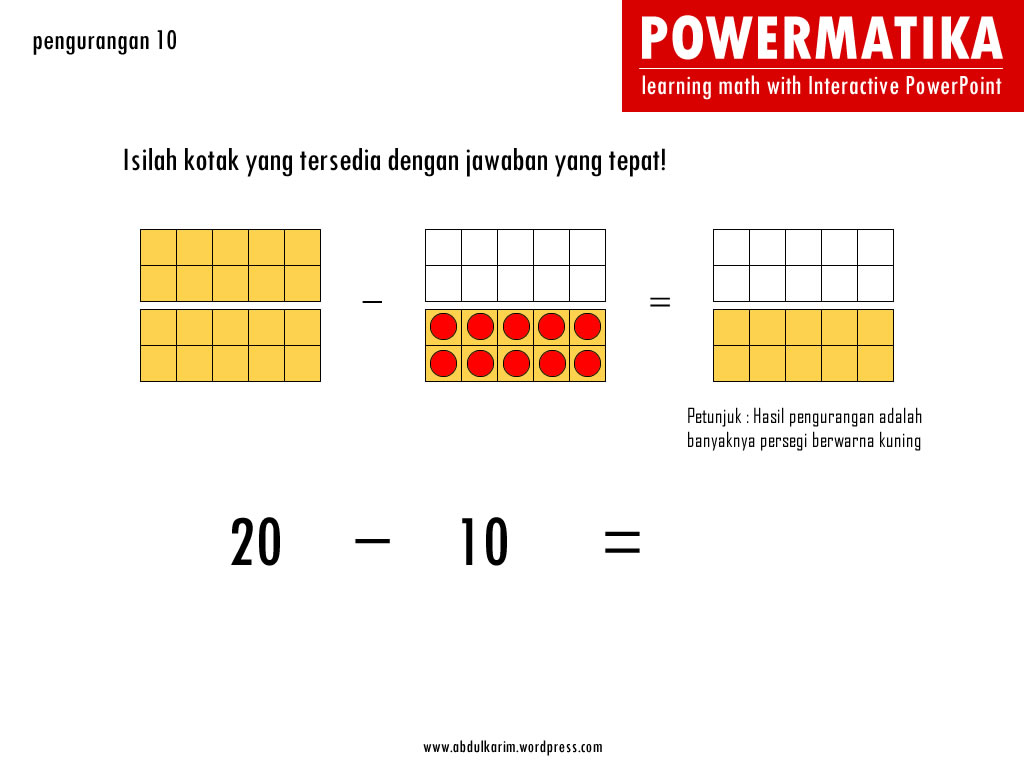
pengurangan_20_10download : powerpoint interaktif pengurangan 10 (file ppsm)

5000 PPT Interaktif : Pengurangan 9 (SD Kelas 1)

Misi dari proyek ini adalah membuat dan menyediakan 5000 bahan ajar interaktif berbasis powerpoint untuk guru dan siswa SD – SMP – SMA di Indonesia, yang dapat di download gratis (rencana akan ada website khusus).

Petunjuk Penggunaan file powerpoint macro enabled show (ppsm), jika di klik file powerpoint yang menggunakan VBA (ppsm), maka akan muncul dialog box seperti pada gambar di bawah. Pilih “enable content for this session” kemudian klik “OK

petunjukcover powerpoint interaktif pengurangan 9

coverIloveMath_pengurangan9screenshot

pengurangan_17_9download : powerpoint interaktif pengurangan 9 (file ppsm)